ID.me Resources for Employers
As of April 21, 2026, the Arizona State Retirement System (ASRS) has transitioned to ID.me to provide a more secure login experience for all employer partners. An ID.me account is mandatory to access your Employer Secure Account - you are no longer be able to log in to your Employer Secure Account using legacy credentials. You will be denied access to the secure portal until you have successfully established a connection via ID.me.
Without an active ID.me connection, employers are unable to:
- Access Secure Messages to communicate with ASRS staff
- Submit Contributions or manage payroll reporting
- Conduct secure ASRS business, including membership verifications or ending payroll certifications
Setting Up Employer Users
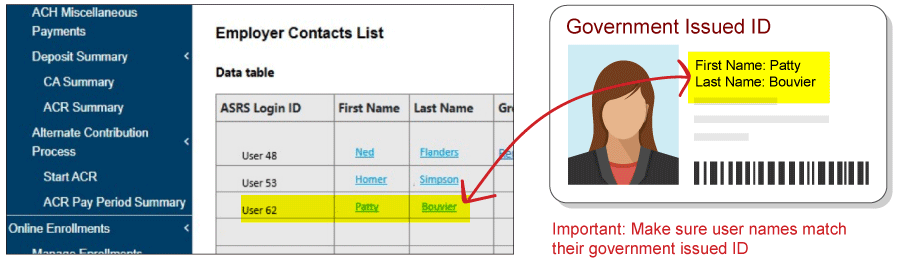
To ensure a successful transition, data on file with the ASRS must match each user's government issued ID.
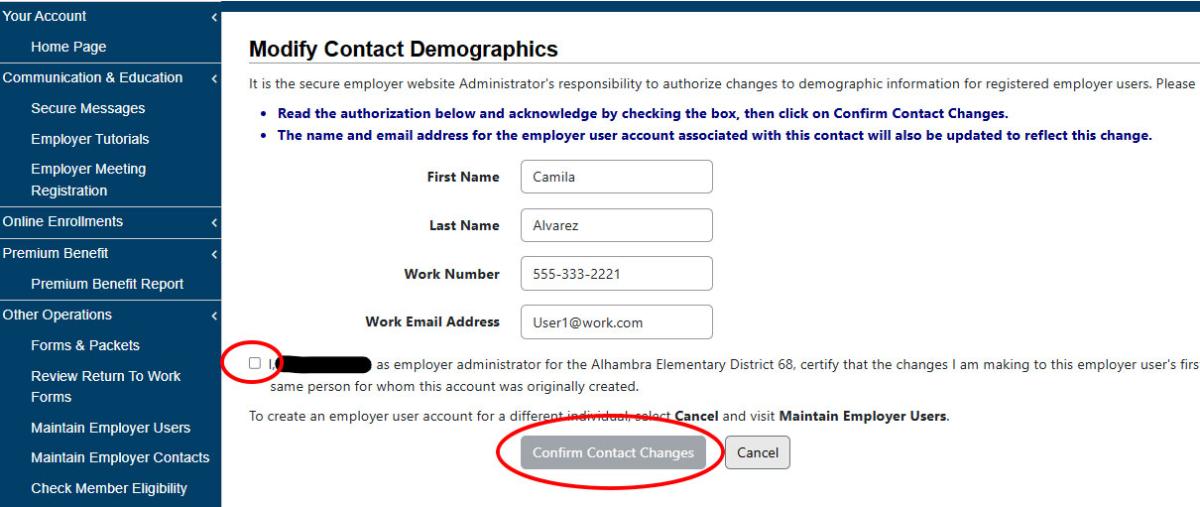
- Verify Legal Names: Ensure each user’s first and last name exactly match the legal name shown on the government-issued ID they will use for verification. Instructions for modifying employer user demographics are below.
- Do not use nicknames, shortened names, or alternate versions, as they may prevent account access. Contact ID.me Support to view a list of acceptable forms of government-issued ID.
- Audit User Access: Confirm that all listed users still require access to the system.
- Mandatory Individual Email Addresses: shared email inboxes (e.g., [email protected]) are no longer permitted. Every ASRS user account must be associated with a unique, individual email address belonging to a specific person.
- Issuing or re-issuing "Unique Identifier Link" emails: All employer users on file were emailed a link that connects their ID.me account to their employer account, allowing them Employer Secure Account access. Admin users can re-issue this email to users via the user management section of the employer portal. If a user is not receiving the email with the link, double-check that the user's email address within the Employer Secure Account is correct and the name listed with the ASRS matches the user's government-issued ID.
- Verify Legal Names: Ensure each user’s first and last name exactly match the legal name shown on the government-issued ID they will use for verification. Instructions for modifying employer user demographics are below.
Logging Into Your Employer Account
 All employer users on file with the ASRS should have received an email from the ASRS with a Unique Identifier Link:
- Click the link: To establish a secure connection between your employer record and ID.me.
- Verify with ID.me: You will be prompted to sign in to your existing ID.me account or create a new one.
- Complete Verification: If creating a new ID.me account, ID.me will verify your identity (usually via a state ID or passport).
- Access Restored: Once complete, you will be redirected back to the ASRS Employer Portal with full access.
If you did not receive an email with your Unique Identifier Link or need it re-sent, please contact the administrator user for your employer account.
Reminder: Please use your personal ID.me account to gain access to the ASRS Employer Secure Account - do not create a second ID.me account with your work email address.
If you need assistance setting up an ID.me account, please refer to our member ID.me Help Page.
General FAQs
It's important to ensure that only authorized users are accessing Employer Secure Accounts. ID.me allows us to confirm a match between the user information we have on file and the user's verified identity via ID.me.
Should you change job roles or leave your employer, the employer admin can unlink your ID.me account and remove your access from the employer account, but your ID.me account is yours and stays with you.
Modifying Employer User Demographics
Please Note: The process below to modify user demographics is for administrator users. If you are an employer user and your information on file needs to be updated or corrected, please work with your admin user to correct it.
If you are an admin user and need to update your name, email address, or phone number: this action must be performed by a second admin. Administrators cannot update their own information - this is one reason we strongly encourage having at least two employer administrators.
- Step 1: Log into the ASRS Employer Secure Account
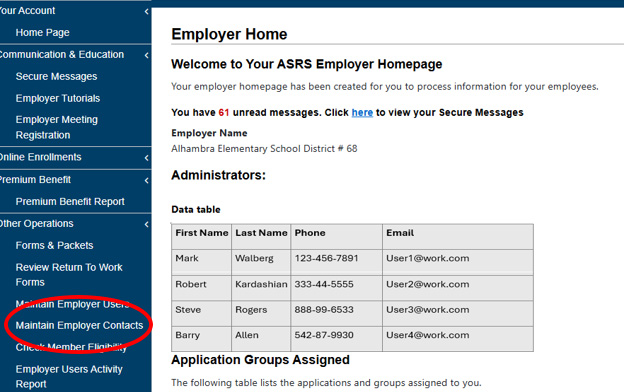
- Step 2: From your Employer Home page, select Maintain Employer Contacts from the left navigation menu
- Step 3: On the Employer Contacts page, scroll down to the Employer Contacts List Data Table and select the user you need to modify by clicking on either their First or Last Name
- Step 4: Click on Modify Contact Demographics to update the user’s email address.